| 
(click on the image to enlarge) 
| | VectorWorks 10 Rating: 5/ 5 Pros: Very refined user interface with numerous improvements, full Aqua support in Mac OS X. Highly customizable workspace, integrated advanced modeling tools, superb presentation capabilities with support for gradient fills, industry-specific add-on capabilities, cross-platform binary compatible, Autocad import/export, new IGES file format import/export, less than 1/3 the cost of Autocad. Cons: Limited Workgroup Referencing (teamwork abilities), no support for OS X Services, rising price tag. Advice: For existing users still not at OS X, this is the must upgrade to make the move with. Autocad users should give program a serious test run (on Mac and Windows). Support: Runs equally well on Windows, Mac OS 9 and Mac OS X. | | |
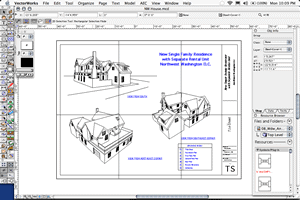
Nemetschek North America's venerable VectorWorks (formerly MiniCAD) CAD product has reached version 10. Like the Apple operating system (Jaguar) we tested it on, version 10 adds numerous enhancements which are geared towards making VectorWorks users much more productive. And like the recent Jaguar release, this version of VectorWorks has a noticeable maturity on Apple's new UNIX-based operating system. With VectorWorks 10 Architosh took a look at the many seemly small improvements—and some of the not-so-small new features—which were a delight to find in themselves and taken as a whole. For veteran VectorWorks users this update offers many changes users have dreamt about for years.
Forward Thinking Steve Jobs would personally be proud of Nemetschek's embrace of Mac OS X. Not only has the product grown more sophisticated as a Mac OS X application, but the interface improvements and structure of the application also show signs of OS X's influence. Gone from the manuals are any hint of Mac OS Classic. All screen shots are either in OS X form or Windows 2000 form. (Ed. Note: VectorWorks 10 remains a native Mac OS Classic application in addition to OS X and Windows OS's) VectorWorks 10 has a new preference setting for controlling the drawing window such that it doesn't allow the overlap of palettes to the left and right of the window. While not as elegant as the capabilities built into the Windows version (a product of Windows' OS API's), version 10 on the Mac does allow you to prevent the fussy overlapping of palettes and windows by turning on a new palette margin option. Other improvements in the UI (user interface) include a move to single-column tool palettes as a default in the main Workspaces and a consolidation of the Resources and Object Browser palettes (more on that later). User Interface and Help Improvements Learning VectorWorks has gotten even better. Perhaps one of the nicest implementations of a UI item that I've seen in quite some time is the way screen tips (shown in little yellow windows) can be expanded by holding the Command key down while you "mouse over" an item with a screen tip. And if you hold the Command key down as you can scan over the entire range of tool buttons you get indepth information on each and every tool. This is a wonderful new feature in VectorWorks 10, which greatly aids in the ability to learn the application. (see image below) 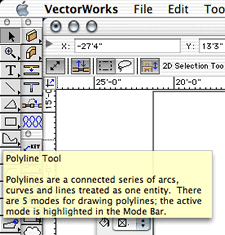
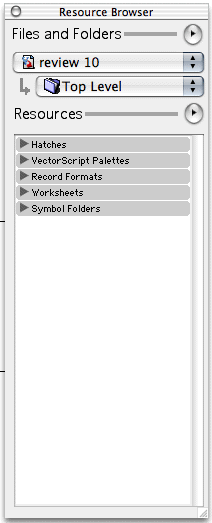
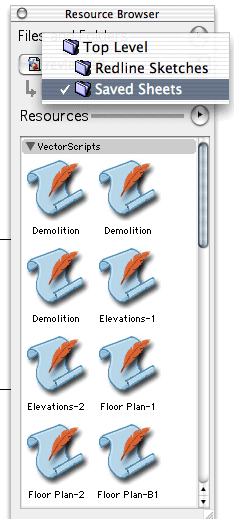
In older Mac classic apps it is possible to get a similar indepth info window on small tools by turning on Balloon Help, but Mac OS X doesn't have Balloon Help API's like the older Mac OS, so this is a nice feature to see in the OS X version of VectorWorks 10. It is also available in the Windows version. Another useful UI improvement is the consolidation of the Resource palette with the Object Browser. Previously these two palettes competed for the same screen real estate, generally under the Object Info palette. In addition to being consolidated, they are also slightly redesigned in their appearance and functionality. (see images below). They are collectively now called the "Resource Browser". Experienced VectorWorks users will notice the UI differences right away. Of particular note is the directory interface titles helping the end user understand what the palette is all about to begin with. The active file still doesn't list itself by default, but it is much clearer where it is and why it is listed there. From the Files and Folders popup menu there is a more convenient way of adding the current file to the list of favorites, clearing all the favorites if you so choose, and adding other closed files to the favorites list. As you can see above, the new list format (left) will pop open to view either a list or thumbnail views of the items (right). VectorScripts, which are what saved sheets are, appear as scrolls of paper with a feather in their thumnail views. If you double click one they will run or you can run them from the Resources popup menu. All and all the Resources Browser makes a big improvement and will likely encourage greater use by both newbies and veterans who have not truly utilized it before. Dynamic Zoom No application requires zooming in and out of a window more than a CAD application. In fact, zooming is almost the function between all functions. So important is zooming in CAD work that a large improvement to the zoom tool will make using the application feel quite different. With VectorWorks 10 Nemetschek North America has added a dynamic zoom capability that does just that, truly improving the process of zooming in and out of your work. 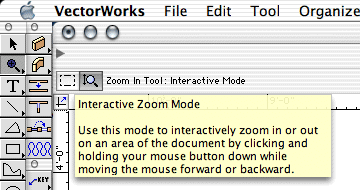
Here's how it works. Simply select the zoom tool for the first time using the mouse or a keyboard shortcut. Select the new interactive zoom feature tool button. (See image above) Now simply hold down the mouse and move it up to zoom in and down to zoom out. It is sensitive to the degree of drag from the first click point of the mouse, so there is speed control capability built into the zoom. It's one very slick tool! Now one way of quicking moving around in VectorWorks is to access both the Pan and the Zoom tools by using the keyboard shortcuts (Z key and C and V key), interchanging between the two, and dragging the mouse up or down to move in and out. This is very affective. In fact, the way it works will be familiar to 3D users of VectorWorks who use the flyby or flyover tools. Next: Customizing Context Menus and Other Improvements | 1 | 2 | 3 | 
|