| > Continued From Page 1
Customizing Context Menus and Other Improvements Another major improvement in the productivity department is the ability to customize the context menus for selected objects or the document window itself. With such functionality, individuals can easily add key tools to any location in the context menu; thus adding context menu controls allows for interesting possibilities in saving time not going to the tool buttons, menu bar, or using additional keyboard shortcuts. To add a command to the context menu you edit a Workspace using the Workspace Editor. Click on the Menu tab and then on the right expand the Object Context or Document Context menu. On the left is a full set of commands in the program organized by menu item. Drag commands from the left window to the appropriate place in the right window to start adding custom context menu commands. (see image below) 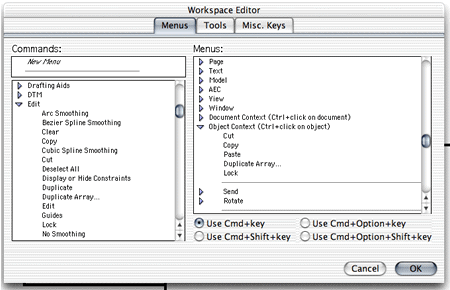
Here's an example: I added the Duplicate Array command to the top of the context menu, just under Paste. I could have put it anywhere. Now selecting an item and holding down the mouse while adding the Control key brings up the immediate function(s) I may use quite often, that is, Duplicate Array in this case. (See the image below) 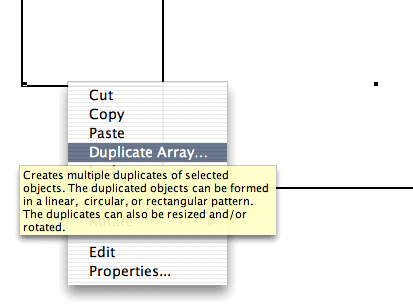
While some improvements like the ability to add custom items (commands) to the Context menu are significant in their range of possibilities, VectorWorks 10 is full of many straightforward and smaller improvements. One such improvement is the increase of "the most recent files" list from four (4) files to ten (10). Another such small improvement is the ability to double-click an object to edit its properties. And yet another is the Create Poly from Walls command, which unifies the similar separate functions for interior and exterior walls. Additionally, VectorWorks 10 now has the ability to import DXF/DWG files as a VectorWorks 10 symbol, activating the symbol insertion tool in one step. There is a new Import IGES command, something that came along with the integration of the VectorWorks 3D Power Pack 3D modeling enhancements introduced less than a year ago. Experienced users of the software will be delighted in an improvement to the Clip Surface command. Clipping now deletes the clipping object (that object you draw just for the purpose of clipping another object). Because VectorWorks 10 is based on a new file format, users will be happy to hear of the new Batch File Conversion command, enabling the batch conversion of MiniCAD 7, VectorWorks 8 and 9 files to VectorWorks 10 format. While there are so many small improvements to mention here, one that should not be forgotten is the new ability to apply Associative Dimensions between items on different layers, something that should have been there when this feature was introduced. Now using association is truly possible and is indeed useful. In like manner, VectorWorks 10 features the ability to use parametric constraints across different layers as well. And another item that finally came to VectorWorks is the ability to do limited tab support for creating indented tables of text items like technical lists and general notes. While many of these improvements and new features are small in their own right, these changes add up to a much more efficient CAD program, something that can cleary affect the bottom line. A Better Backup VectorWorks, since the MiniCAD days, has always had an anemic recovery scheme. For many years MiniCAD only had one Undo command. In the last several major revisions the CAD program has begun to catch up to competition. With this release the Autosave feature has been improved. It is now possible to create a separate backup document and save it to a designated Backup Folder. (See image below) 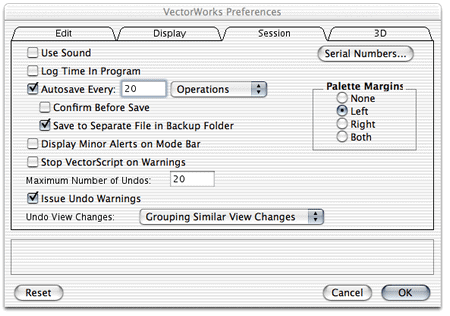
Additionally, the Autosave feature will allow you to save automatically without confirmation interruption based on a number of operations (commands in the program) or number of minutes. These are both nice improvements but Nemetschek will likely be pushed to continue to improve in this area even further. Next: The New Gradient Tools | 1 | 2 | 3 | 
|